
TYO Reach for iPhone and iPad
Install TYO Reach from the App Store and sign in. Reach adds itself as a VPN profile under iOS Settings — that's how Apple requires apps to route network traffic on iOS — so you'll see a VPN indicator in the status bar whenever Reach is connected.
Install
Search for TYO Reach in the App Store (or use the link on the download page), install, open and sign in with your TYO account. Approve the VPN configuration when iOS asks; it's the standard prompt every network app on iOS shows. The app has four tabs along the bottom: Home, Gateways, Activity, and Account.
Home — connect and see what's happening
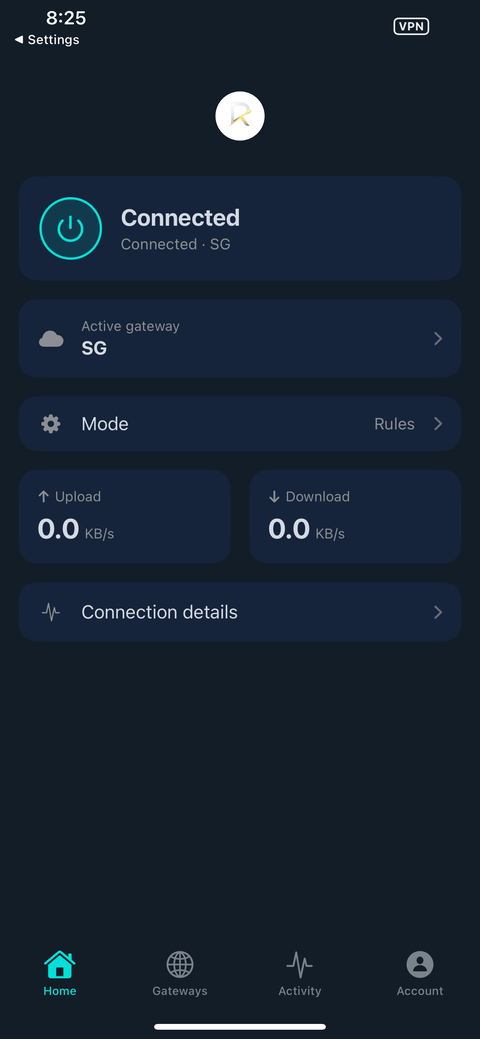
Tap the power button to connect. Active gateway shows which region you're routed through, and Mode opens your routing rules. Upload/download speed and connection details update live once you're connected.
Gateways — choose your exit region
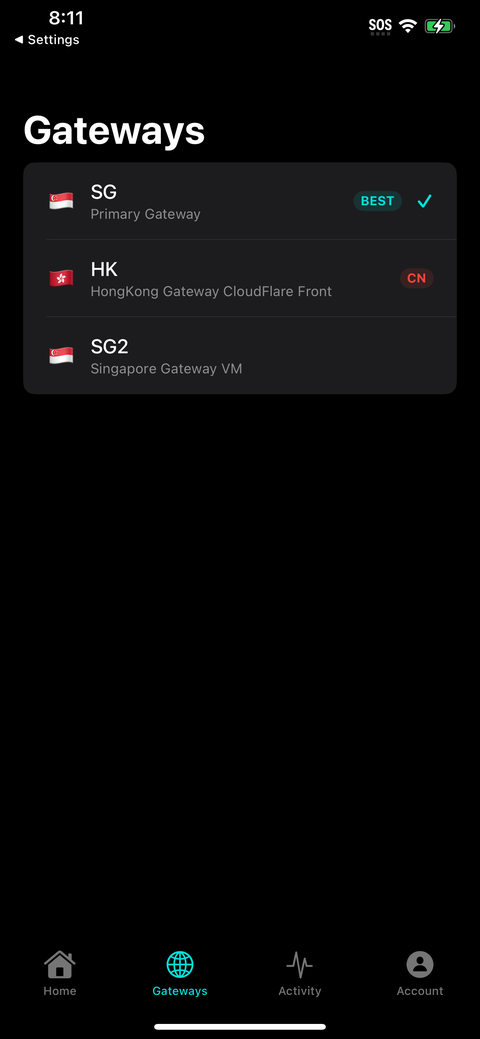
Pick a region, or let Reach pick automatically — the recommended gateway is marked BEST. Gateways aimed at mainland China access are flagged with a CN badge.
Rules — route, bypass, or block by domain
Rules are reached via Home → Mode:
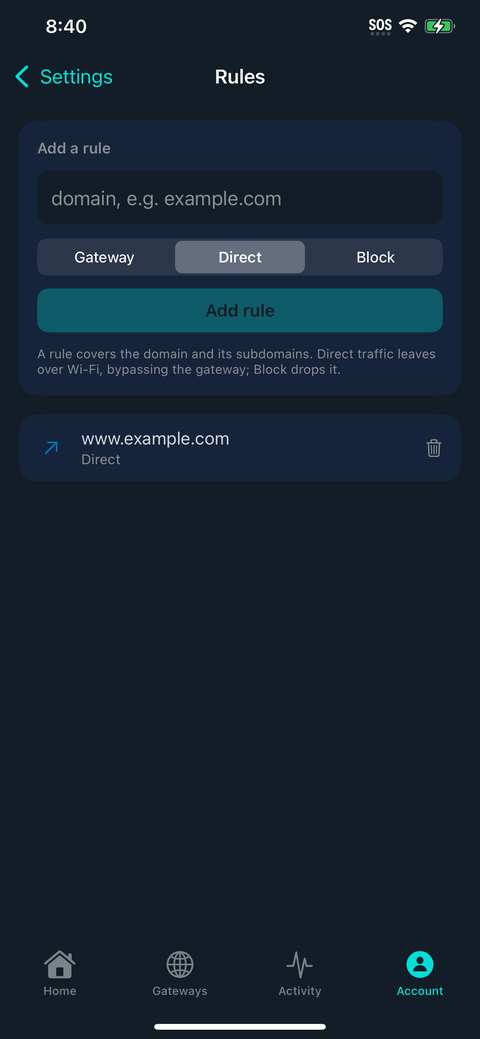
Add a domain and choose one of three actions: Gateway (routed through Reach), Direct (leaves over Wi-Fi or cellular, bypassing the gateway), or Block (dropped entirely). A rule covers the domain and its subdomains.
Activity — see what's actually happening
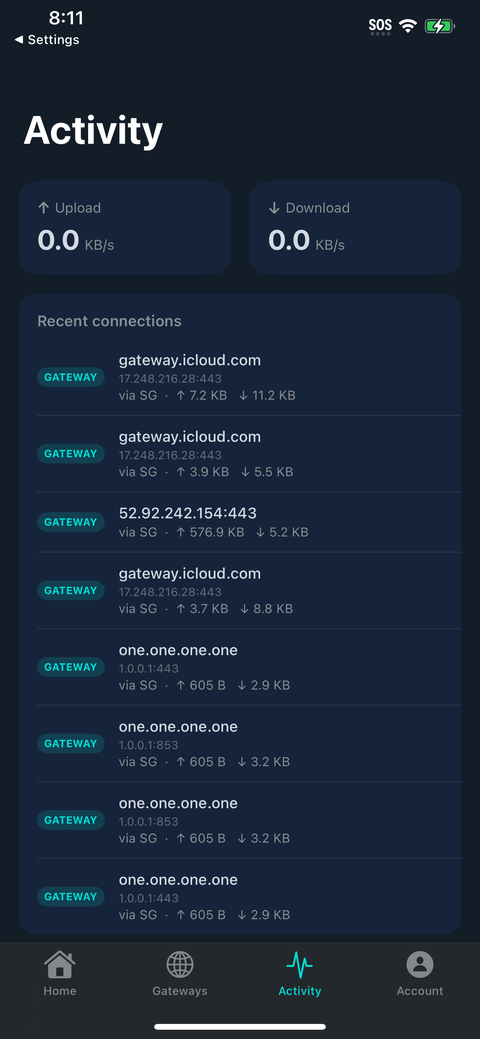
A live log of recent connections — destination, IP, which gateway handled it, and upload/download for each. Useful for confirming your rules are doing what you expect.
Account
Your signed-in account, plan, and data usage are on the Account tab, the same details shown on the other platforms.
Push-to-approve sign-in
With the app signed in on your phone, signing in to Reach on the web or another device sends a push notification to the phone: you confirm the matching number shown on the computer, and the login completes. This works for every account — you don't need a team plan. You can still use a TOTP authenticator instead.
Common questions
Why does iOS show a VPN icon when I use Reach?
Apple only lets apps route traffic through the Network Extension (VPN) framework, so Reach must register as a VPN profile on iOS. It still only routes what your domain rules say; the profile is the mechanism, not a change in what's proxied.
Can I pick which apps are routed on iPhone?
Not per app — iOS doesn't allow it. Use domain rules instead: add the hosts you want routed (or blocked), and everything else goes direct.
Other platforms
Windows · macOS · Linux · Android · All platforms