
Install TYO Reach on Windows
Run TYOReach-Setup.exe from the download page — it installs to your user
account with no administrator rights — then clear two standard Windows security prompts
the first time, sign in, and switch on from the system tray.
1. Run the installer
Download TYOReach-Setup.exe from the download page and run it. The
installer is a standard user-level (NSIS) setup: it installs under your own account, so
there's no elevation prompt and no IT ticket needed — it works on machines where you
don't have admin rights.
"Are you sure you want to run this app?"
Because the app is newly published, Windows SmartScreen may show a blue warning asking whether you're sure you want to run it.
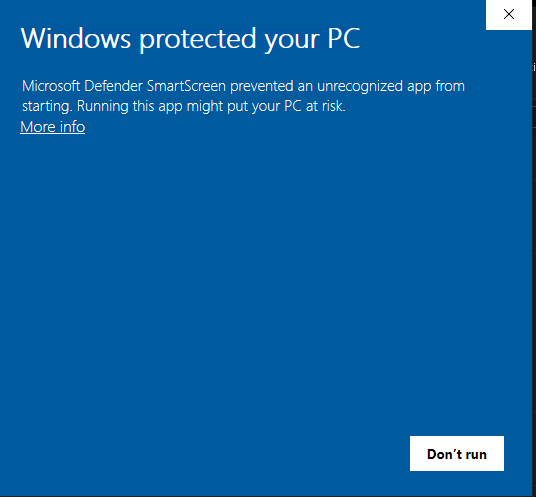
- Click More info.
- Then click Run anyway.
The app is safe — this prompt appears for any app Windows hasn't seen many times yet, and it goes away once the app is well established.
2. Allow the firewall prompt
The first time you switch the proxy on, Windows Defender Firewall pops up to say it has blocked some features of the app. This is expected — the app needs to accept the local connection from the browser it routes.
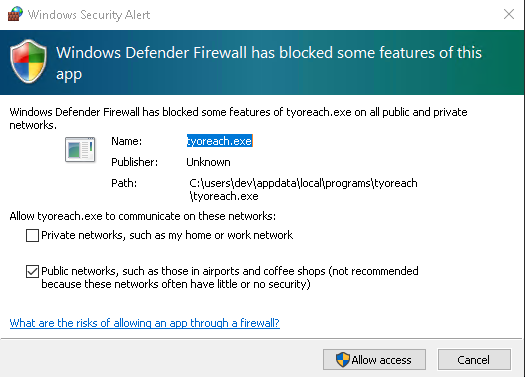
- Tick Public networks.
- Click Allow access.
You only need to do this once. TYO Reach only routes the browser you choose — see How Reach differs from a VPN.
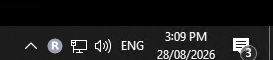
3. Find the tray icon
Once installed, look for the TYO Reach icon in your taskbar's system tray, next to the clock:
4. Sign in
Click the icon, then Sign in to TYO Reach:
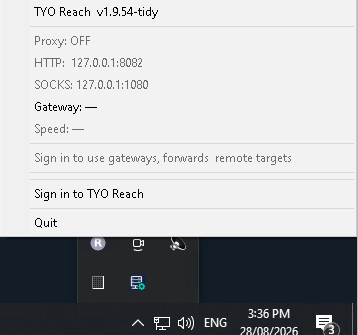
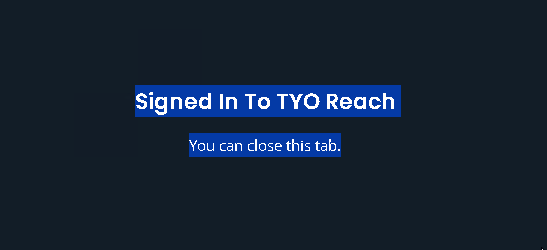
Your browser opens to confirm. Once you see this, you can close the tab:
5. Switch it on
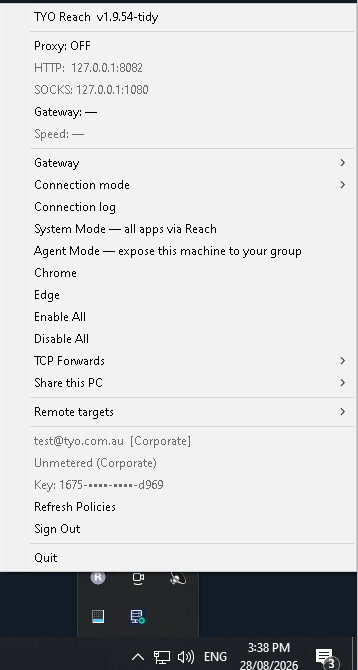
Click the tray icon again. You'll now see your signed-in account at the bottom of the menu, with the proxy still off:
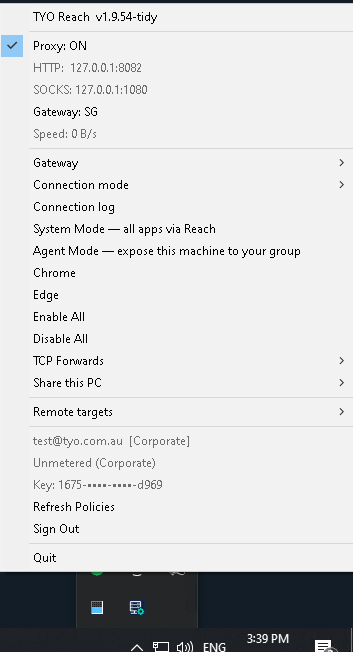
Click Enable All to switch the proxy on. A checkmark appears next to the version, Proxy shows ON, and Gateway shows the region you connected to:
After this first run, signing in and switching the proxy on and off works without any further warnings.
Updates and uninstalling
- Updates: the app checks for new releases and prompts you when one is available — accept the prompt to install the new version.
- Uninstall: Settings → Apps → Installed apps, find TYO Reach and choose Uninstall. Because it installed at user level, no admin password is needed.
Common questions
Do I need administrator rights to install TYO Reach on Windows?
No. The installer runs at user level and doesn't request elevation, so it works on work laptops where you aren't an administrator.
Why does Windows say the app might be unrecognised?
SmartScreen shows that warning for any newly published app until it has built up a reputation. Click More info → Run anyway. The download is served from reach.tyo.com.au.
Why does the firewall ask for permission?
Reach runs a small local proxy that your browser connects to. Windows Defender Firewall asks once whether that local listener is allowed. Tick Public networks and click Allow access; you won't be asked again.
Other platforms
macOS · Linux · Android · iPhone and iPad · All platforms